Visual Studio’s October update tidies Git comparisons
The tiny change was supposed to be harmless. Then another tiny change joined it, and suddenly the code has a backstory. A useful developer tool should make that history easier to inspect before anybody presses a large, confident button.
Microsoft’s October 27 release announcement brings working-tree comparisons and bulk conflict resolution to Microsoft Visual Studio 2026 Stable Channel.
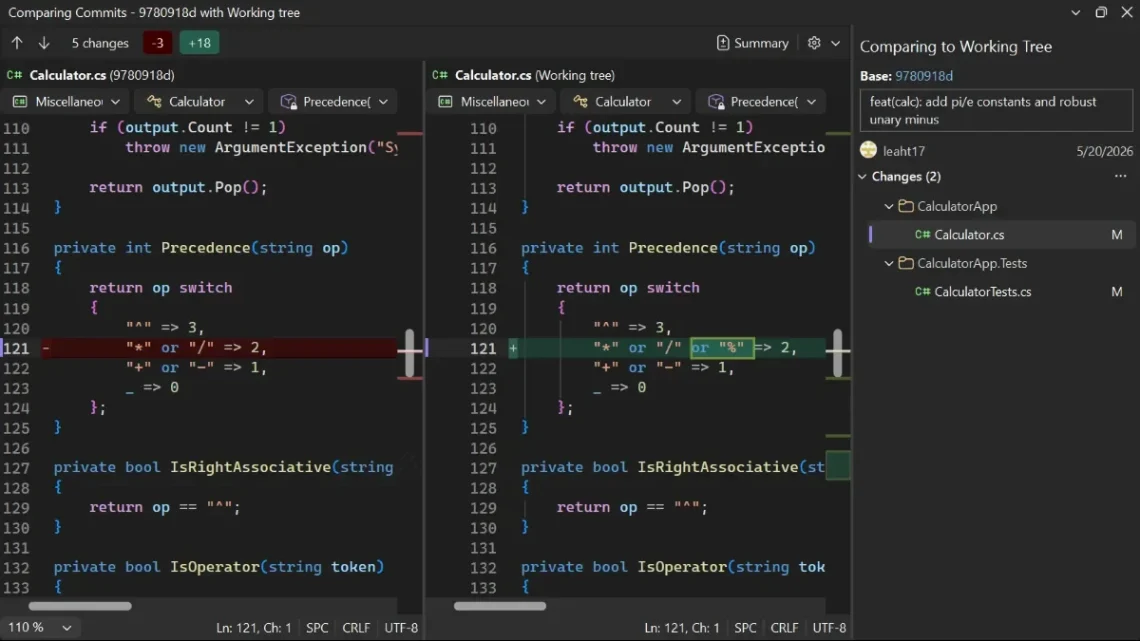
Put the old and current versions side by side
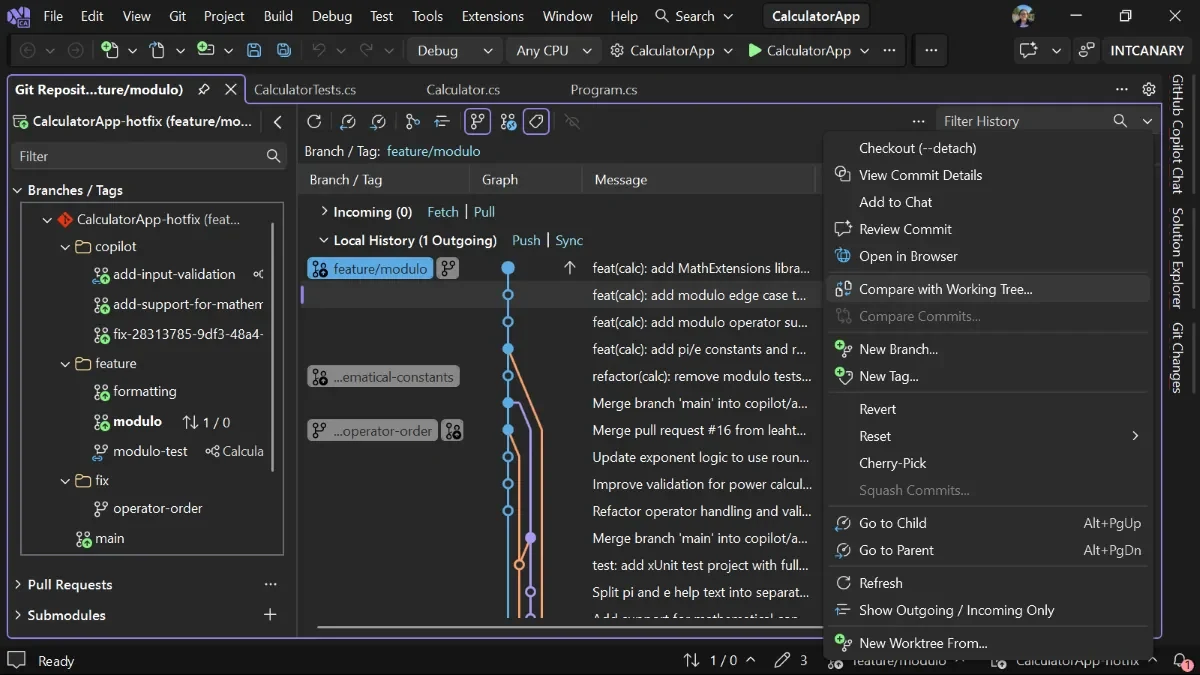
In Git Repository history, right-click an earlier commit and choose Compare with Working Tree. The comparison includes current work, without checking out that historical commit.
That is a particularly appealing starting point for a refactor that wandered across several commits. Instead of remembering which “small cleanup” contained the important change, begin with a version you recognise and inspect the difference. The point is a clearer question: what changed between that known state and the work in front of you?
A quicker choice still deserves a careful look
Git Changes also lets a selection of conflicted files, a folder or the repository take one side’s resolution together. The two commands retain current content or take incoming content.
For the underlying distinction, the official Git book explains that modified, staged and committed content are different states. A commit records what was staged; later edits are not silently added to that snapshot. Its diff examples distinguish unstaged changes from the changes prepared for the next commit.
So give the file list a proper look before making a bulk decision. The same choice may be right everywhere, but “I am tired of clicking” is not quite the same thing as “these changes all mean the same thing.” A faster broom is lovely. Check what is under it before sweeping.
The quieter interface upgrade
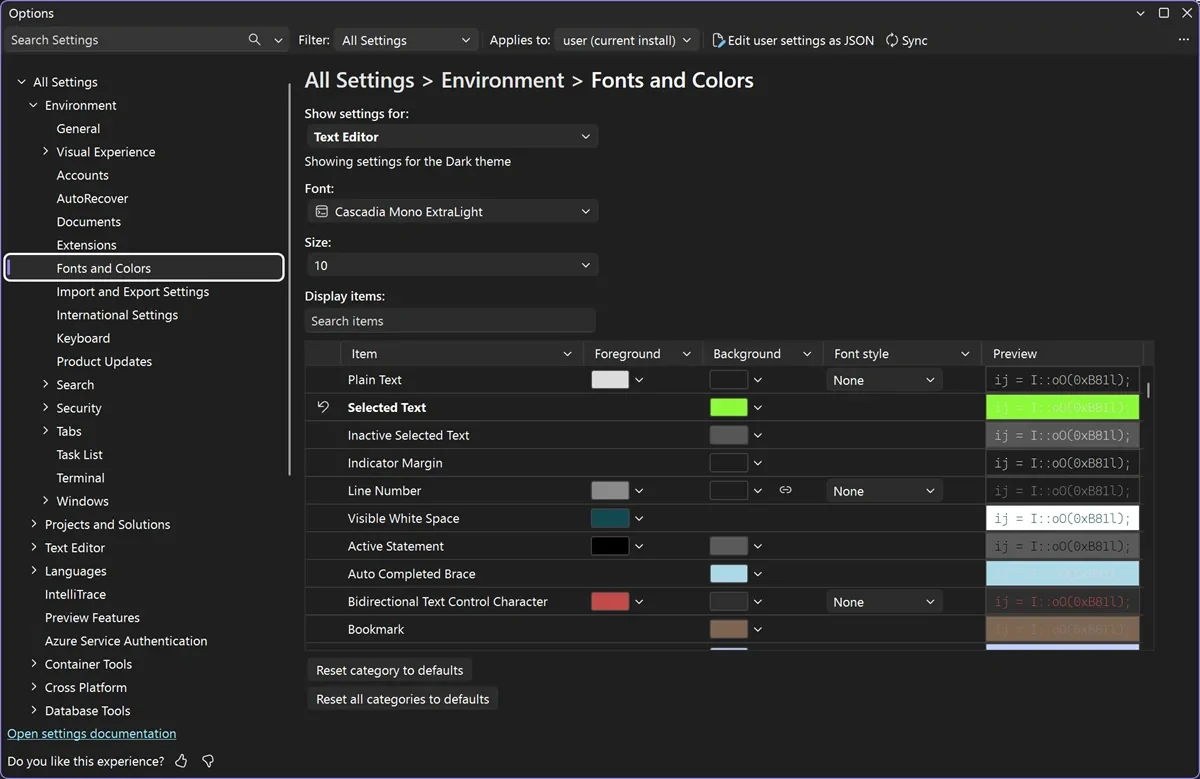
The update also refreshes Fonts and Colors, with category navigation, search and inline previews. Appearance changes synchronise with settings.json.
Those controls are worth approaching with a small, repeatable check. Open a file you know well, try the adjustment and read a normal stretch of code. A theme can be adorable in a screenshot and exhausting halfway through a real task. Your eyes are allowed a vote, even when the colour palette is being extremely persuasive.
The useful takeaway is to inspect one change at a time before adopting the shortcuts everywhere. Our Software & Services coverage follows other updates, and PowerToys’ mouse-control changes offer another example of small desktop conveniences with practical setup decisions.
These are documented release features, not results from our testing. Screenshots: Used with permission from Microsoft.


You May Also Like
Green House brings soft colours to its new USB-C wired earbuds

SIMGOT sets Japanese release for SuperMix 5 and EG280