PowerToys 0.102 gives your mouse button a break and your pointer an exit
PowerToys 0.102 has arrived with an unexpectedly considerate offer: it can keep a mouse button held down for you, then persuade the pointer to stop sitting over the word you are trying to read. Microsoft’s October 21 release announcement introduces Mouse Button Lock and CursorHide, alongside a quicker way to reach favourite commands. Small conveniences, yes. So are pockets, and we remain extremely fond of those.
Long drags can stop being a tiny endurance event
Mouse Button Lock lets you briefly hold an enabled mouse button, release it and continue dragging or selecting as though it were still pressed. Another mouse-button click releases the lock. That could make an extended selection or a long journey across a large display feel less fiddly, particularly for people who find sustained button presses difficult.
The official instructions add an important detail: hold the pointer still while the button is being armed. Moving too far turns it into an ordinary drag instead. The utility starts switched off, and its button options default to the right button because Windows already has ClickLock for the primary left button.
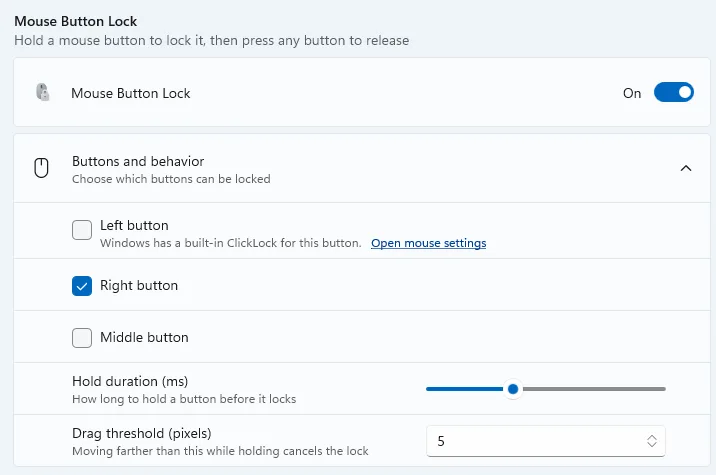
The gentle appeal is being able to concentrate on where something should go rather than whether your finger is about to let it go halfway there. The file has already been on quite an adventure. It does not need to spend the afternoon accidentally visiting three unrelated folders.
And the pointer gets its own little manners lesson.
CursorHide makes room for the words
CursorHide can conceal the pointer when you type, after an idle period, or both, then bring it back when you move the mouse. A pointer parked over a paragraph is a very small annoyance with astonishing staying power. This is the software equivalent of asking somebody to move their elbow off the page, kindly.
Try the behaviour in the apps you actually use before deciding it belongs everywhere. Some apps draw their own cursors, and Microsoft notes limits for Mouse Button Lock in games using raw or exclusive input. These are optional controls you can tune around your routine, rather than a new set of habits you must adopt.
Favourite commands get a small shelf
There is a useful Command Palette improvement too: an optional quick-access shelf in compact mode. Enable it under Settings, Appearance and Compact mode to show pinned commands beneath the search box. Alt + 1 through Alt + 9 can launch those pins; they can also be dragged into a preferred order.
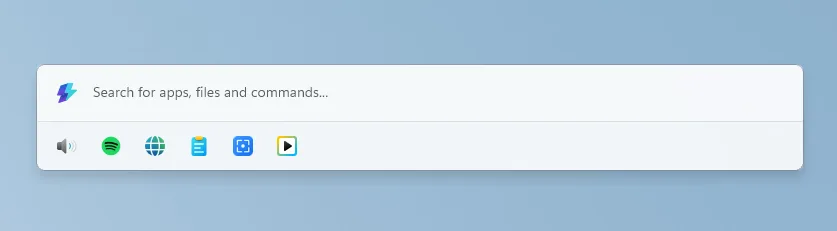
This is where a little restraint helps. Start with the handful of actions you reach for repeatedly. If the shelf becomes a museum of things you might need someday, the useful buttons are back to hiding among souvenirs. One or two genuinely convenient shortcuts can be enough.
You can check for updates inside PowerToys or use Microsoft’s official release page. This is a separate utility update from the experimental Windows features in our Quick Settings report. Our computing coverage follows both. There is something pleasing about an update that notices the ordinary little bother and quietly fixes it. The mouse pointer has had the best seat on the paragraph for long enough.
Hero image: Microsoft. Official image source.


You May Also Like
MSI Prestige N16 Flip puts RTX Spark in a pen-ready convertible
Dell KM7321W review: the office combo that skips the light show