
Reason Interactive Tutorial
Guided beginner course · Reason
Use standalone Reason 14 to import two audio parts, build a sixteen-bar form, shape a melody entrance, balance the Main Mixer and export a checked Song.
Reason 14 Operation/Installation Manuals and official walkthrough checked 27 October 2026. This is the standalone DAW. Reason Rack Plugin relies on its host for setup, arrangement and export and does not follow this course. No optional Rack Extension or subscription sound is required.
Before you start
- Download and unzip the DeviceCritique practice pack. Beat WAV and Melody WAV are original practice fixtures: mono, 44.1 kHz, 16-bit, 16 seconds, eight bars of 4/4 at 120 BPM. They are not recordings of this DAW.
- Standalone Reason 14 in a mode that permits reopening your saved Songs and exporting audio. Demo-mode reopening restrictions make it unsuitable for the full course.
- Working listening output; no microphone or MIDI keyboard is required.
- The webpage records your own completion acknowledgement; it cannot hear or inspect your DAW.
Work in a practice project and keep the supplied files together. The checks on this page record your answers and your own confirmation that you tried the exercise.
Practice lab: listen, mix and download
Start with the same two parts: a beat and a simple melody. Both are eight bars of 4/4 at 120 BPM—16 seconds each. The pack also includes MIDI notes and three drum one-shots.
Original DeviceCritique synthesized teaching audio. Your DAW instrument can sound different; the exercise is about timing, editing, balance and a complete export.
The full-length WAVs are mono, 44.1 kHz / 16-bit. Unzip the pack for MIDI and kick, snare and closed-hat samples. Keep a copy of your editable DAW project as well as your final audio file.
Try the balance here
Play the two stems together. Lower the melody to hear the beat on its own, then bring it back. Use the same listening decision in your DAW.
Press Play when you are ready to listen.
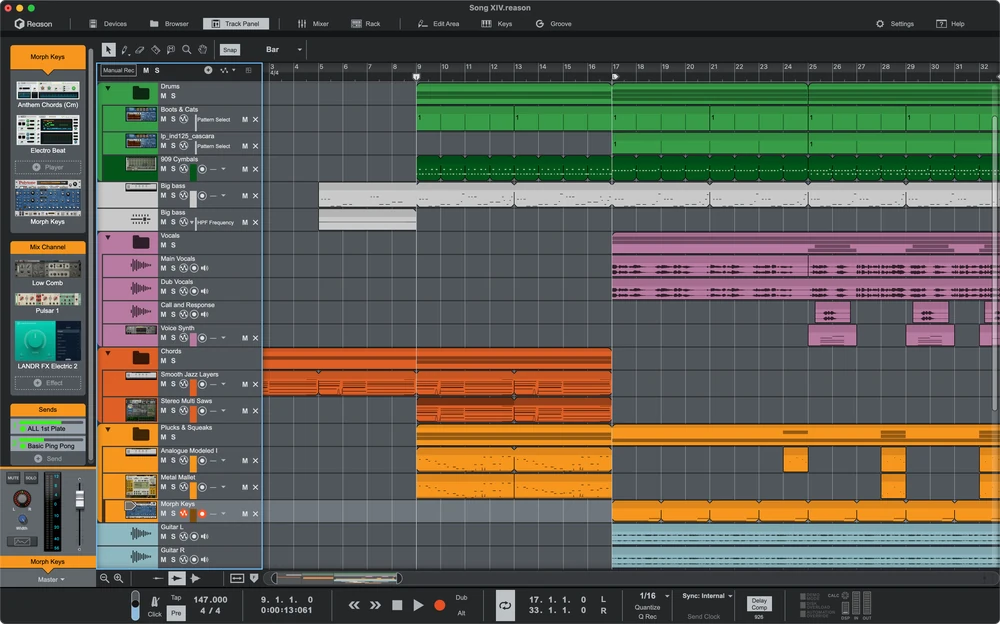
See the official interface reference
Lesson 1 of 8
Choose standalone Reason and the output
By the end: Find the sequencer and Main Mixer while selecting the listening device.
Begin with the listening path in standalone Reason. Rack Plugin uses a host workflow instead. Imported practice audio lets you learn without recreating an instrument patch or acquiring another device.
Set the listening device
Open Settings from Edit on Windows or the Reason menu on macOS. In Audio, choose the device connected to your headphones or speakers. Rack Plugin uses its host’s setup instead. Standalone setup instructions.
Locate the workspaces
Identify the sequencer’s Arrange Area and the top-bar Mixer button. An Audio Track, its rack device and its Main Mixer channel belong together; they are views of a connected signal path. Mixer relationships.
Hear the supplied beat
Audition Beat WAV outside Reason, then stop that player. Locate transport Play and Stop for the later import check. This establishes a familiar sound without claiming the webpage has tested your device.
Check your project: You are using standalone Reason, know the selected device and can find the sequencer and Main Mixer.
If your result is different
If Reason is running as Rack Plugin, return to your host’s documentation for audio and transport. These standalone Settings steps do not configure the host.
Lesson 2 of 8
Save a Song with a fixed musical frame
By the end: Create a named Song at 120 BPM and 4/4 before importing.
Save a Song and give it a predictable grid before import. The sources are eight bars at 120 BPM in 4/4. Keep tempo fixed while building the first arrangement.
Create and save
Choose File > New, then File > Save. Name the Song and choose its destination before importing. The Song stores rack, mixer and sequencer work; saving early also gives imported audio a proper destination. Song file handling.
Set tempo and meter
In the Transport Panel, set Tempo to 120 and Time Signature to 4/4. Locate the Song Position Pointer and the ruler’s bar markings. Transport and ruler reference.
Use a useful snap
Enable sequencer Snap and select Bar for arrangement work. This gives clear boundaries for moving or splitting whole sections; the Edit Area can have its own separate snap value when detailed editing is needed.
Check your project: The Song is saved, the transport reads 120/4/4 and the arrangement has whole-bar snap boundaries.
If your result is different
If a clip later changes length unexpectedly, inspect its import/stretch interpretation instead of randomly altering Song tempo.
Lesson 3 of 8
Import two parts without a tempo surprise
By the end: Create separate audio tracks and verify their original eight-bar lengths.
Reason can stretch imports to Song tempo. Here the original timing is known, so establish that first. Keep Reference Mix outside the Song and import the two parts as audio.
Choose predictable import behaviour
In Settings > Browsing, review audio-to-sequencer behaviour. Choose Import as is, disable stretch on clip for this fixed-tempo audio exercise. Remember the preference if you want different behaviour in later work. Audio import options.
Import both files
Set Song Position to the start. Choose File > Import Audio File, select Beat WAV and Melody WAV together, then Import. Multiple selected files are placed on new audio tracks at the current Song position.
Inspect and audition
Confirm both clips begin at bar 1 and end at bar 9. Play them and identify each part. If you used a different stretch option and a file was misinterpreted, the audio editor can show/reset its tempo interpretation. Audio tempo interpretation.
Check your project: Both audio tracks play together at their known original timing, with eight-bar clips aligned from bar 1.
If your result is different
A single-file import may use the audio track with edit focus. Selecting both files together here avoids accidentally placing the two parts sequentially on one lane.
Lesson 4 of 8
Build a sixteen-bar canvas
By the end: Loop the two eight-bar clips once and check the repeat boundary.
Extend the two eight-bar parts once to create a sixteen-bar canvas. This loops existing audio rather than recording a new performance. Next you will decide when melody makes its entrance.
Extend the beat
Select the beat clip and use its upper-right looping gesture: hover until the loop icon appears, then drag to bar 17. Reason 14 also documents a Loop Clips button. Official Reason 14 walkthrough.
Match the melody length
Extend the melody in the same way so both parts cover sixteen bars. Inspect the original pattern boundary at bar 9 and the new end at bar 17. Use Bar Snap to make that range easy to check. Clip arrangement and looping.
Listen through the repeat
Play from before bar 9 until after it. Listen for unexpected gaps, doubled attacks or a shortened pattern. If the edge only resized rather than looped, undo and inspect the loop cursor or Loop Clips state before retrying.
Check your project: Both parts cover sixteen bars and repeat at bar 9 with the result you intended.
If your result is different
Looping and trimming are different operations. Confirm the loop state and source pattern length rather than repeatedly dragging an ambiguous edge.
Lesson 5 of 8
Shape an entrance and hear the edit
By the end: Remove the first four melody bars and refine the boundaries.
Let the beat establish the opening before the melody joins. Use a targeted split and listen across the gap. Four bars is this exercise’s suggestion, not a rule for every Song.
Split the intended material
Select only the melody clip. With Bar Snap enabled, use the Razor Tool at bar 5. Return to the Selection Tool and remove the melody section before that point, leaving the beat untouched. Clip splitting and selection.
Check the retained pattern
Play from bar 1 through the entrance and through the later repeat. Confirm that the desired melody material still occupies the intended later bars. If a looped-clip edit changes the result unexpectedly, undo and inspect its loop settings before continuing.
Soften only what needs it
Use the clip’s Fade In/Out handles or Inspector fade fields where needed. Keep the fade short enough to preserve the note, and hear the ending too. Audio-clip fades.
Check your project: The beat begins alone, the melody entrance is intentional and changed boundaries have been checked by listening.
If your result is different
If several tracks change, inspect the selection and Undo. A Razor click on the ruler can split clips across tracks; click the intended clip for this exercise.
Lesson 6 of 8
Balance the Main Mixer
By the end: Give the beat and melody clear roles in the full section.
Focus on two channel levels and their combined result. Aim for a clear melody over supportive rhythm. The first balance needs neither an elaborate rack nor a claim of automatic mastering.
Find the corresponding channels
Click Mixer in the top bar. Locate the beat and melody Audio Track channels and the fixed Master Section on the right. These channel strips correspond to the sequencer tracks and rack devices. Main Mixer reference.
Balance without extra processing
Play the section containing both parts. Lower levels initially and adjust one channel at a time, checking the introduction too. If the master indicates overload, lower contributing levels and replay; keep optional EQ, dynamics and effects out of this first pass.
Use the reference as an example
Stop Reason and play Reference Mix separately. Return to the Song and describe one balance decision. Allow for different player volumes; louder is not automatically a more useful relationship.
Check your project: You can follow both parts, the melody’s arrival works and you can identify the corresponding mixer channels.
If your result is different
Do not delete a rack Audio Track device merely to hide a channel: its sequencer track and mixer channel belong together and deletion affects them too.
Lesson 7 of 8
Export the Song you actually arranged
By the end: Save, set the ending and verify a separate audio file.
Keep the editable Song and exported audio. Choose the intended ending before export, including any audible tail. The End Position Marker, rather than your current zoom, defines Song export length.
Save and reopen
Save the Song, reopen it and confirm both parts still play. Keep the original practice pack available. Reopening your own Songs requires an authorised mode; the demo restrictions are a real prerequisite, not a missing file you can fix by renaming it. Song opening and saving.
Set the actual Song end
Move the End Position Marker to the end you want, including any audible tail. Choose File > Export Song as Audio File and select destination, filename and format. Song versus Loop export.
Check the listening deliverable
Export the WAV and play it outside Reason. Check the introduction, melody entrance, repeat and complete ending. Export Song uses the Song end marker; Export Loop instead uses the Left and Right locators, so do not confuse those two ranges.
Check your project: The Song reopens and a separate audio file contains the intended arrangement and ending.
If your result is different
A very long silent export suggests the End Position Marker is too far right. A cut-off ending suggests the range or tail allowance is too short.
Lesson 8 of 8
Make a second Song with your own form
By the end: Apply the workflow independently and explain the musical choices.
Build a new version with your own opening and contrast. Use the same fixtures at 120 BPM/4/4, choosing eight or sixteen bars. State what the listener should notice before editing.
Start from your own brief
Create and save a new Song. Import the two parts at the same start and check their original timing. State the melody entrance, total length and one moment when the texture will change. Song files; Import options.
Make the chosen form
Loop only if your brief needs another pass. Use a targeted split, trim or move to shape the texture; listen to every edited boundary. Balance the Main Mixer after the changes. Arrangement controls; Main Mixer.
Deliver and reflect
Set the Song end, save/reopen the project and export the intended range. Listen outside Reason and note one successful choice and one improvement you would make next. The webpage’s completion check remains your acknowledgement, not an analysis of the audio file.
Check your project: A saved, reopened Song and checked audio export match the entrance, length and contrast in your own brief.
If your result is different
If the plan becomes unwieldy, keep one rhythm-only introduction and one full section. Those two states are enough to demonstrate an intentional form.
A standalone Song with a beginning and payoff
Create an eight- or sixteen-bar standalone Reason Song at 120 BPM/4/4 with the two fixtures. Choose an intentional melody entrance and one contrast. Save/reopen the Song and deliver a WAV covering the intended ending.
- Standalone Reason is used, not the Rack Plugin workflow.
- Both audio parts begin from a checked alignment.
- The arrangement contains an intentional melody entrance and contrast.
- The authorised Song reopens and plays.
- The exported audio has been checked externally, including its ending.
You have recorded your practice checks and answered the knowledge questions. Keep your editable project and listen through your exported version once more.
Official manuals and lessons used for this course
Documentation-based instruction, checked 27 October 2026. Progress and quiz answers stay in this browser. Use the checkpoint descriptions to assess your own DAW project. The original practice audio demonstrates an exercise; it is separate from the manufacturer interface reference.