
Ableton Live Interactive Tutorial
Guided beginner course · Ableton Live
Build an eight-bar software-instrument sketch at 120 BPM, edit it intentionally, then save a Live Set and export a listening copy.
Based on the Ableton Reference Manual Version 12, checked 27 October 2026. Use an instrument included in your Live edition; this course needs no Max for Live devices or external MIDI controller. Menu labels can differ in earlier builds.
Before you start
- An installed, authorized Live 12 edition and working headphones or speakers.
- One available instrument or preset included in your licence; a computer keyboard is enough for note input.
- A folder for the editable project and exported audio. The practice pack is optional listening material, not a required MIDI import.
Work in a practice project and keep the supplied files together. The checks on this page record your answers and your own confirmation that you tried the exercise.
Practice lab: listen, mix and download
Start with the same two parts: a beat and a simple melody. Both are eight bars of 4/4 at 120 BPM—16 seconds each. The pack also includes MIDI notes and three drum one-shots.
Original DeviceCritique synthesized teaching audio. Your DAW instrument can sound different; the exercise is about timing, editing, balance and a complete export.
The full-length WAVs are mono, 44.1 kHz / 16-bit. Unzip the pack for MIDI and kick, snare and closed-hat samples. Keep a copy of your editable DAW project as well as your final audio file.
Try the balance here
Play the two stems together. Lower the melody to hear the beat on its own, then bring it back. Use the same listening decision in your DAW.
Press Play when you are ready to listen.
See the official interface reference
Lesson 1 of 8
Find the sound path before making a song
By the end: Identify the output device, timeline and contextual help.
First separate playback setup from musical work. Tracks and clips hold the idea; the audio device sends the result to your headphones. We will use the linear Arrangement timeline.
Choose your output
Open Settings from Options on Windows or Live on macOS. In Audio, select the driver and output device you actually listen through. Windows users should prefer the interface manufacturer’s ASIO driver when available. Audio Settings reference.
Orient the workspace
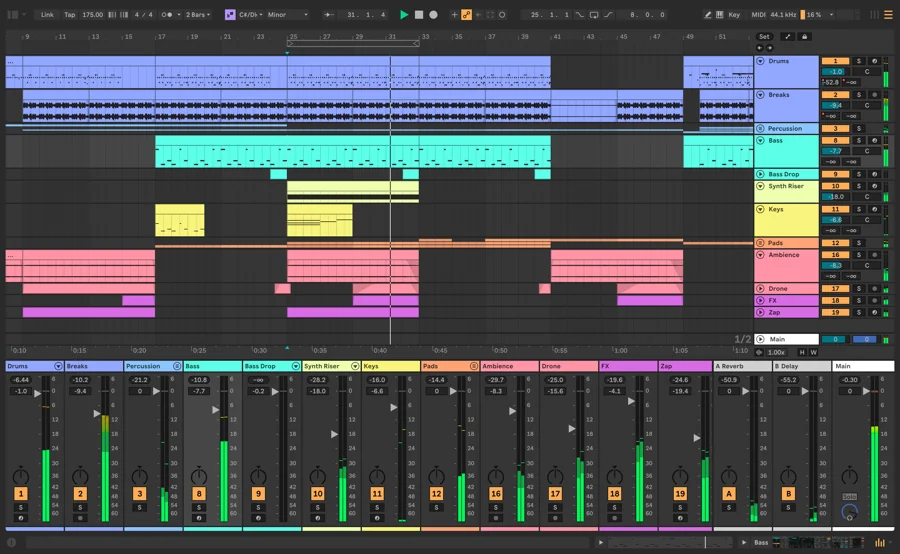
Use the Control Bar’s view selector to show Arrangement View. Locate the Browser, a track header and the timeline. These areas have different jobs; you will load a sound, then give it musical instructions. Live’s interface map.
Check your project: You can name the selected audio output and point to a track and the Arrangement timeline.
If your result is different
If a label is unfamiliar, enable Info View and hover over it. Read the control’s description before changing it; a differently coloured template is not a setup failure. Info View.
Lesson 2 of 8
Give the sketch a name and a pulse
By the end: Save a new Set and establish a steady 120 BPM timeline.
Use 4/4 at 120 BPM for this exercise. Two bars contain eight quarter-note beats. Save a named project before recording so the following decisions have a recoverable home.
Start and save
Choose File → New Live Set, then File → Save Live Set As. Use a recognisable name such as “First phrase 120” and a dedicated folder. Live Set saving.
Set the pace
Enter 120 in the Control Bar’s tempo field and use 4/4 for the time signature. Play with the metronome enabled, then stop after counting two bars. Setting tempo · Recording in sync.
Read the ruler
Locate bars 1, 3 and 9 on the beat-time ruler. Right-click a track’s main lane to inspect its grid choices; choose a fixed quarter-note grid for this exercise. Grid snapping helps place edits on musical divisions. Arrangement grid.
Check your project: The Set has a name, the tempo reads 120, and you can locate a two-bar span from bar 1 to bar 3.
If your result is different
If 120 is already displayed, confirm it rather than changing it twice. The bar numbers mark boundaries: bar 1 through the beginning of bar 3 is two bars, not three.
Lesson 3 of 8
Make the keyboard play one sound
By the end: Load an instrument and audition it without recording.
MIDI supplies performance instructions; an instrument generates audio. Choose a short sound whose beginnings and endings are clear, using content available in your own edition.
Load a voice
Select a MIDI track. In the Browser, double-click an available instrument or instrument preset to load it onto that selected track. Open its Device View and confirm an instrument is present, rather than only an audio effect. Loading devices and presets.
Enable note input
Turn on Options → Computer MIDI Keyboard, then arm the MIDI track. The centre letter row plays notes; the lower-row octave controls change its range. Play a few separate keys before attempting a phrase. Computer-keyboard note input · Arming tracks.
Choose deliberately
Audition two available sounds using the same few notes. Keep the one whose attacks and endings are easiest to hear. Write down its name so you can recognise the project when you return.
Check your project: A computer-keyboard key produces the selected instrument’s sound and you can find that instrument in Device View.
If your result is different
If input arrives without sound, inspect the instrument and the track’s Audio To destination. For this simple project it should reach Main. Input and output routing.
Lesson 4 of 8
Record a small performance
By the end: Create a MIDI clip by playing notes into the Arrangement.
Aim for four notes across two bars, with silence between them. The first take establishes a working recording path and gives the editing lesson something concrete to improve.
Prepare the take
Keep your instrument track armed, put the insertion point at bar 1 and enable the metronome. Use the menu beside the metronome to select a count-in if you want a lead-in. Leave other tracks unarmed. Count-in and track arming.
Record and stop
Press Arrangement Record. If playback does not start, press Play: the Start Playback with Record preference changes this behaviour. Play your four notes, then press Stop around bar 3. Recording into Arrangement.
Hear the captured result
Turn recording off and play from bar 1. Listen without touching the note keys. Check whether all four notes were captured and whether the spaces between them feel intentional.
Check your project: A new MIDI clip contains your performance and plays it back without further keyboard input.
If your result is different
If the clip is empty, confirm that the intended track was armed. Merely selecting a track is not the same action as enabling recording on it. Recording prerequisites.
Lesson 5 of 8
Change timing and length on purpose
By the end: Use the MIDI Note Editor to make two audible edits.
Choose one early note and one awkward ending. Change them separately, listening between edits, so each movement has an audible purpose rather than simply making the screen tidier.
Open the notes
Double-click your recorded MIDI clip to open Clip View and its MIDI Note Editor. Switch Draw Mode off for these drag operations. Click one note so you are editing a single event. MIDI editing reference.
Move, then resize
Drag the note sideways to change its timing. Next, drag an edge to shorten or lengthen it. Keep the pitch unchanged for this pass and replay after each change; the grid determines the available timing steps. Moving and resizing notes.
Tidy the phrase boundary
Back in Arrangement, drag the clip’s right edge so your phrase spans from bar 1 to bar 3. Keep every wanted note inside that boundary. This makes a repeatable two-bar building block. Moving and resizing clips.
Check your project: You can point to one changed start position and one changed note length, and the two-bar clip retains the wanted notes.
If your result is different
If a drag changes pitch accidentally, undo it and move horizontally. Zoom in when a short note’s edge is hard to grab; verify the audible result rather than trusting the picture alone. Note editing.
Lesson 6 of 8
Build eight bars and set a listening level
By the end: Repeat the phrase on the timeline and inspect the Main output.
The arrangement controls when the phrase happens; the mixer controls its level. Repeat the phrase predictably, then compare listening levels before adding extra effects.
Extend the idea
Select the two-bar clip and use Edit → Duplicate. Repeat until four copies fill bars 1–9. Check their boundaries rather than leaving tiny gaps between phrases. Stay in Arrangement playback for this exercise. Selection-based Arrangement editing.
Expose the mixer
Show the mixer with its bottom-right view control. Use the instrument track’s Volume control to set a comfortable output and watch the Main meter through the whole eight-bar section. Live mixer controls.
Make one comparison
Lower the instrument slightly, listen, then compare with the previous level. Keep the quieter setting if it gives comfortable playback. Leave extra effects out until the melody’s spacing and volume are understandable.
Check your project: Four two-bar clips occupy bars 1–9, and the Main output plays the complete sketch without exceeding 0 dB.
If your result is different
If the clips play silently after recording, check monitoring: In suppresses clip playback, while Auto changes with arming and playback. Monitoring modes.
Lesson 7 of 8
Keep the editable Set and export the music
By the end: Create a WAV of the intended eight-bar section.
The Set preserves editing; the audio file enables ordinary listening. Keep both, and verify the export’s signal and range before considering the project finished.
Save first
Use File → Save Live Set. If you later add external samples, Collect All and Save can copy selected external dependencies into the Project. This software-instrument exercise does not require importing the practice MIDI. Saving and collecting files.
Choose signal and range
Select bars 1–9 in Arrangement and choose File → Export Audio/Video. Set Rendered Track: Main. Confirm Render Start and Render Length match the eight-bar selection. Enable PCM and choose WAV. Audio export controls.
Verify outside Live
Export with a recognisable filename. Open that file in an ordinary audio player and listen from the first note through the ending. Confirm it contains the repeated phrase, then reopen the Set and locate its editable notes.
Check your project: Both the saved Set and a playable WAV exist, and the WAV contains the intended section.
If your result is different
If the export is silent, confirm the instrument is present and Main was the selected source. A MIDI-only track without an instrument does not provide a finished audio performance. Rendered Track choices.
Lesson 8 of 8
Make a second sketch without the recipe
By the end: Apply the complete workflow with one intentional variation.
Make another sketch with a new rhythm or sound. Practise the complete workflow and explain one deliberate change. These are self-checks; this page cannot inspect your DAW session.
Plan before clicking
Write a tiny brief: 120 BPM, four notes, two-bar phrase, eight-bar arrangement. Decide whether the new version should feel busier or calmer. Listen to the practice Reference Mix separately if you want an example of a compact sketch, not a sound you must copy.
Build with fewer prompts
Create a fresh Set, load an instrument, record the phrase, then make a timing and duration edit. Arrange four repetitions and choose a comfortable level. Use the earlier lesson only when you cannot name the next action. How clips, devices and Sets fit together.
Deliver and explain
Save the Set, export a WAV and listen outside Live. Write one sentence naming a change you made and the difference you heard. Check completion only after you have done the exercise yourself.
Check your project: A second editable project and audio export exist, with an intentional musical difference from your first sketch.
If your result is different
If you get stuck, identify the failed stage: no note input, no generated sound, no recorded clip, or wrong export range. Return to that lesson instead of rebuilding every setting.
Your eight-bar postcard
Create a fresh 120 BPM sketch using a different instrument sound and rhythm. Keep the editable Set and export a WAV. The assessment is your listening and explanation, not an automatic judgement by this page.
- The project opens with editable MIDI notes and its instrument.
- The two-bar phrase repeats through an eight-bar arrangement.
- At least one note’s timing and one note’s duration were deliberately edited.
- The Main output stays within the intended level range.
- The exported WAV plays from beginning to end outside Live.
You have recorded your practice checks and answered the knowledge questions. Keep your editable project and listen through your exported version once more.
Official manuals and lessons used for this course
Documentation-based instruction, checked 27 October 2026. Progress and quiz answers stay in this browser. Use the checkpoint descriptions to assess your own DAW project. The original practice audio demonstrates an exercise; it is separate from the manufacturer interface reference.