
LMMS Interactive Tutorial
Guided beginner course · LMMS
Draw an original one-bar TripleOscillator phrase, develop it into eight bars, save the editable project, and export a WAV.
Checked 27 October 2026. This course targets the official English Stable 1.2.x manual; that manual also flags some 1.3-only controls, which this exercise avoids. Where stable navigation pages were unavailable, LMMS’s official archived 1.2.1 pages were used for the toolbar, Song Editor, instrument volume and FX-Mixer. These archived pages contain English text despite their Japanese-section URLs. Controls may differ in development builds.
Before you start
- LMMS installed, with working headphones or speakers.
- No MIDI controller, paid plug-in, SoundFont or microphone is required; use the built-in TripleOscillator.
- This course draws its own C–E–G–E exercise rather than importing MIDI. It does not promise to reproduce the separate practice-pack reference mix.
- An eight-bar 4/4 arrangement at 120 BPM lasts 16 seconds before any sound tail.
Work in a practice project and keep the supplied files together. The checks on this page record your answers and your own confirmation that you tried the exercise.
Practice lab: listen, mix and download
Start with the same two parts: a beat and a simple melody. Both are eight bars of 4/4 at 120 BPM—16 seconds each. The pack also includes MIDI notes and three drum one-shots.
Original DeviceCritique synthesized teaching audio. Your DAW instrument can sound different; the exercise is about timing, editing, balance and a complete export.
The full-length WAVs are mono, 44.1 kHz / 16-bit. Unzip the pack for MIDI and kick, snare and closed-hat samples. Keep a copy of your editable DAW project as well as your final audio file.
Try the balance here
Play the two stems together. Lower the melody to hear the beat on its own, then bring it back. Use the same listening decision in your DAW.
Press Play when you are ready to listen.
See the official interface reference
Lesson 1 of 8
Choose an audio path and find your windows
By the end: Configure playback and distinguish Song Editor from instrument controls.
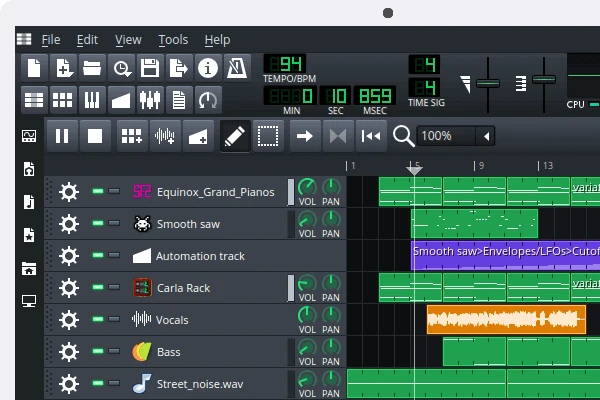
LMMS assembles patterns into a song, while each instrument supplies the sound. We will draw a tiny phrase rather than record a microphone or chase a plug-in installation. First make the listening path understandable. If the synth is silent, the answer is usually more specific than “I am bad at music.”
Choose an audio interface
Open Edit → Settings and its audio-interface settings. The stable manual recommends SDL on Windows and macOS; choose an available working backend on Linux. Avoid Dummy, which produces no audio output.
Identify the work areas
Find the Song Editor, where blocks form the arrangement, and the instrument row named TripleOscillator or its default preset. Click that instrument’s name to open its controls.
Try one sound
Click a piano key at the bottom of the instrument window. Keep listening volume comfortable. Confirm a tone, then close or move the instrument window so Song Editor is visible again.
Check your project: A clicked instrument key makes a tone, and you can find Song Editor again.
If your result is different
If silent, check the selected backend, system output and instrument volume. A Dummy backend cannot be fixed by drawing more notes.
Lesson 2 of 8
Name the project and set a steady grid
By the end: Save a new project and set the tempo to 120 BPM.
The project stores editable patterns; an exported WAV will be a separate listening copy later. Give this idea a proper home before it becomes another mysterious unnamed window. Our first piece stays in 4/4 at 120 BPM, which makes each bar two seconds. Small arithmetic, surprisingly useful superpower.
Begin a clean project
Choose New using LMMS’s new-project control, or Ctrl+N. If another project is open, save any work you want to keep before replacing it. Find the TripleOscillator row in the fresh project.
Set the tempo
Locate the master tempo number in the upper toolbar. Drag its value up or down until it reads 120. Keep the time signature at 4/4 and leave master pitch alone.
Save an editable file
Use Save As or Ctrl+Shift+S. Name the project
dc-lmms-first-phrase.mmpin a folder you can find. This project file is not yet an audio export.
Check your project: Your project has a recognisable filename, a known folder and a 120 BPM tempo.
If your result is different
If tempo changes the pitch control instead, stop and read the tooltip. The toolbar contains several adjacent numeric controls with different jobs.
Lesson 3 of 8
Draw the first one-bar tune
By the end: Make a four-note phrase using the Piano Roll.
Here is the entire composition brief: C, E, G, E, one note on each beat. Choose a comfortable octave and keep all four notes within it. This is an original practice phrase, not a transcription of a commercial song. The musical ambition is deliberately tiny so the controls can earn your attention.
Create the pattern
In Song Editor, click the first empty bar beside TripleOscillator to create a segment. Double-click that segment to open its Piano Roll; opening the window alone is not enough to select a pattern.
Place four notes
Choose Draw. Set quantization and default note length to 1/4. Place C on beat one, E on beat two, G on beat three and E on beat four, using the piano-key rows as pitch guides.
Hear the little loop
Use Piano Roll Play, then Stop. Check for four equally spaced notes and no overlap into a second bar. Return to Song Editor and play the first segment there too.
Check your project: One bar contains exactly four audible notes: C–E–G–E, each lasting one beat.
If your result is different
If the Piano Roll is blank or detached, reopen the actual segment. If notes pile up, check their horizontal beat positions and the chosen note length.
Lesson 4 of 8
Change one note, then prove you can recover
By the end: Edit pitch and length while keeping the rest of the phrase intact.
A note rectangle has two useful jobs: its centre moves the note, while its right edge changes duration. Practise those gestures separately. The point is control, not making the phrase busier. Four confident notes beat fourteen accidental ones having a small argument in the piano roll.
Move the last note
Open the first segment’s Piano Roll. In Draw mode, drag the centre of the last E vertically down to C without changing its beat-four start. Play it and compare the feeling of the ending.
Try a length change
Drag that note’s right edge to make it shorter, then listen again. Keep the start in the same place. Restore its one-beat length after hearing the difference.
Rebuild the original ending
Move the final C back to E. Count the four starts across the bar and play the phrase. Save with Ctrl+S once the original C–E–G–E pattern is restored.
Check your project: You changed pitch and duration independently, then restored the original one-bar phrase.
If your result is different
If another note appears, erase the accidental rectangle with right-click in Draw mode. Use the centre for movement and the right edge for length.
Lesson 5 of 8
Turn a pattern into eight bars
By the end: Arrange eight adjacent one-bar segments in Song Editor.
The Piano Roll describes notes inside a pattern; Song Editor decides where that pattern happens in the song. We now need eight one-bar segments, not one note stretched across eight bars. It is the difference between repeating a sentence and holding its first vowel until everyone leaves the room.
Return to the arrangement
Close or move Piano Roll so Song Editor is clear. Confirm the first segment occupies only bar one. Play from the beginning and stop after that bar.
Copy, rather than move
Hold Ctrl before dragging the first segment to the start of bar two. Repeat to create adjacent copies through bar eight. An ordinary drag moves a segment; Ctrl-drag makes a copy.
Check the whole shape
Count eight segments starting at bars one through eight, with the final right edge at bar nine. Play Song Editor from the start and listen for a steady sequence without gaps or doubled blocks. Save the project.
Check your project: Song Editor contains eight consecutive one-bar patterns, covering eight bars at 120 BPM.
If your result is different
If bar one becomes empty, you moved the block instead of copying it. Restore a block there and hold Ctrl before starting the next drag.
Lesson 6 of 8
Give the last bar a destination
By the end: Create a simple ending and set a comfortable instrument level.
Eight identical bars prove the mechanics, but a small ending gives the phrase a reason to stop. We will change only the last note of the last bar. Then set the instrument level by listening. This is expression at a manageable scale: one decision, an audible result, and no shopping list of effects.
Change the final destination
Double-click the segment in bar eight. Move its last E down to C while leaving the other three notes and their timing intact. Play bars seven and eight, then check the first segment still contains C–E–G–E.
Choose the instrument level
Open TripleOscillator’s instrument window. Lower its volume knob if the phrase is uncomfortable or harsh. Leave the pan and pitch controls unchanged so you can hear the effect of one adjustment.
Inspect the output
Open FX-Mixer with its toolbar toggle. Find Master, where the default instrument routing arrives, and watch its meters while playing. Keep a clear, undistorted result rather than pushing the level for its own sake.
Check your project: Only bar eight ends on C, and the whole phrase plays at a comfortable level.
If your result is different
If other bars changed unexpectedly, restore them before continuing. If silent, check the instrument’s volume and its active/mute state rather than adding another synth.
Lesson 7 of 8
Keep the project and export the song
By the end: Save your eight-bar arrangement and render a WAV.
You now have a whole small piece: a beginning, a repeated idea and a final note that settles. Keep the editable project, then make an ordinary audio file. Export settings here are a practical exercise choice, not a claim that one format makes every track sound better. The essential check happens after rendering.
Save the working arrangement
Press Ctrl+S and confirm the project filename still describes this exercise. Keep the .mmp file for changing notes later; your WAV will be a listening copy.
Render an audio file
Choose Project → Export, name the output
dc-lmms-first-phrase.wavand choose its folder. In the export window, select WAV, 44.1 kHz and 16-bit integer, then complete the export.Check outside LMMS
Open the WAV in an ordinary player. Listen for all eight bars and the final C. The musical content is 16 seconds at this tempo; a small sound tail or export padding may make the file slightly longer.
Check your project: The saved .mmp reopens for editing and the WAV plays the complete phrase independently.
If your result is different
If the WAV contains only one bar, check Song Editor’s arrangement. If silent, return to instrument playback and mute/volume checks before exporting again.
Lesson 8 of 8
Compose one small variation yourself
By the end: Create and deliver an alternate eight-bar phrase.
This time you choose the change. Keep the original one-bar rhythm and eight-bar structure, but make one of the middle bars answer the opening. You can change a pitch or shorten a note. A useful variation is recognisable beside the original; it does not need to arrive with fireworks and seventeen new instruments.
Protect the first version
Use Save As to create
dc-lmms-alternate.mmp. Decide which middle bar will change, and write a one-line plan before editing. Keep bar eight’s final C as the ending.Make a focused variation
Open your chosen segment in Piano Roll. Change one note’s pitch or duration using the gestures already practised. Play from the preceding bar so you hear the variation in context, then check the rest of the arrangement.
Deliver and compare
Save and export
dc-lmms-alternate.wav. Play both exports outside LMMS and explain where the variation occurs and what it contributes. Mark completion only after checking your actual files.
Check your project: Two editable projects and two playable WAVs demonstrate a deliberate, identifiable variation.
If your result is different
If the change is difficult to hear, make one clearer alteration before adding more. If the arrangement breaks, return to the saved first project and compare.
An original eight-bar LMMS phrase
Draw C–E–G–E as one-beat notes, arrange eight bars, and give the final bar an ending on C. Make a separate alternate with one middle-bar variation. This synth exercise is not claimed to match the practice-pack audio reference, and the website cannot assess your LMMS project automatically.
- The editable project is saved at 120 BPM in 4/4.
- The opening pattern has four one-beat notes in one octave.
- Eight consecutive segments fill bars one through eight without gaps.
- Only the final bar’s last note resolves to C in the first version.
- A separate alternate contains one identifiable middle-bar variation.
- Both WAVs play the complete musical idea outside LMMS.
You have recorded your practice checks and answered the knowledge questions. Keep your editable project and listen through your exported version once more.
Official manuals and lessons used for this course
Documentation-based instruction, checked 27 October 2026. Progress and quiz answers stay in this browser. Use the checkpoint descriptions to assess your own DAW project. The original practice audio demonstrates an exercise; it is separate from the manufacturer interface reference.