
Logic Pro for Mac Interactive Tutorial
Guided beginner course · Logic Pro for Mac
Record a two-bar instrument idea with Musical Typing, edit its notes, loop an eight-bar sketch and bounce a separate audio file.
Uses Apple’s Logic Pro for Mac guide with the 12.3 version selector, checked 27 October 2026. Mac desktop instructions only. Musical Typing replaces the need for an external MIDI keyboard; no microphone or paid third-party plug-in is required.
Before you start
- Logic Pro for Mac installed, with a working Core Audio output and an available software-instrument patch.
- A Mac keyboard for Musical Typing and a folder for the project.
- Optional: the practice Reference Mix for listening separately. This course records your own notes and does not require MIDI import.
Work in a practice project and keep the supplied files together. The checks on this page record your answers and your own confirmation that you tried the exercise.
Practice lab: listen, mix and download
Start with the same two parts: a beat and a simple melody. Both are eight bars of 4/4 at 120 BPM—16 seconds each. The pack also includes MIDI notes and three drum one-shots.
Original DeviceCritique synthesized teaching audio. Your DAW instrument can sound different; the exercise is about timing, editing, balance and a complete export.
The full-length WAVs are mono, 44.1 kHz / 16-bit. Unzip the pack for MIDI and kick, snare and closed-hat samples. Keep a copy of your editable DAW project as well as your final audio file.
Try the balance here
Play the two stems together. Lower the melody to hear the beat on its own, then bring it back. Use the same listening decision in your DAW.
Press Play when you are ready to listen.
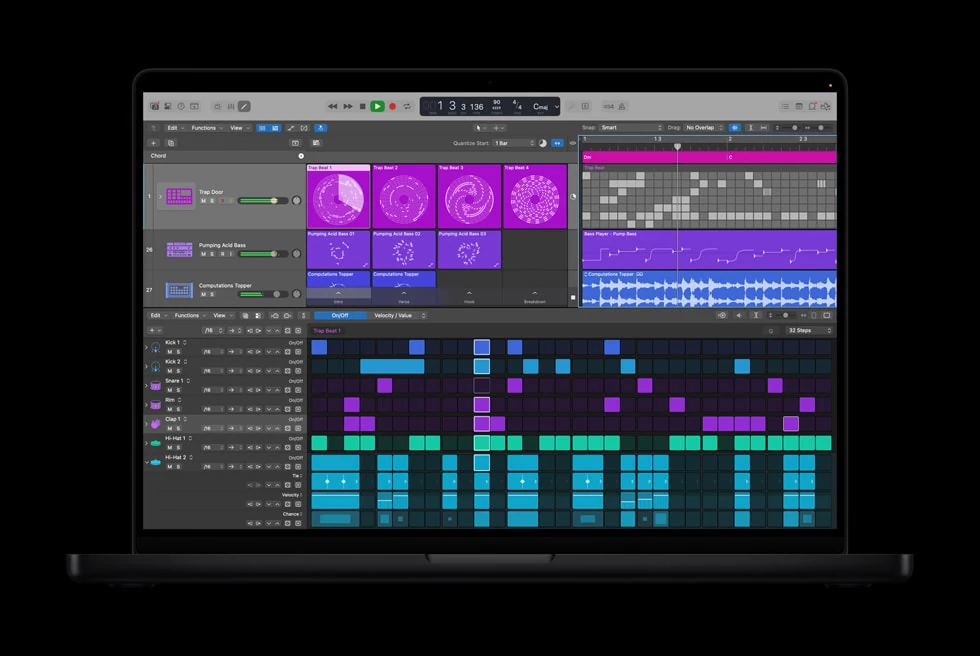
See the official interface reference
Lesson 1 of 8
Connect the listening side first
By the end: Choose a playback device and understand this course’s instrument route.
This course records key presses as MIDI, then generates sound with a software instrument. Establish the listening output before recording so later silence has fewer possible causes.
Open the audio setup
Choose Logic Pro → Settings → Audio, then click Devices. This is the audio-device panel, rather than the project’s tempo or MIDI editor. Configure an audio device.
Choose playback
Keep Core Audio Enabled selected and choose the intended Output Device. Built-in sound hardware is included among the available Core Audio devices. Apply any changed settings. Audio Devices controls.
Set the exercise boundary
Use headphones or speakers at a comfortable level. Our goal is a small software-instrument sketch; leave microphone-input experiments for another project. Keep this guide beside Logic so you can alternate an action with a listening check.
Check your project: You can identify Logic’s selected Output Device and understand that this exercise records notes rather than a microphone.
If your result is different
If instruments and playback are all silent, check Core Audio Enabled before replacing patches. Apple documents that disabling it also turns off audio and software-instrument plug-ins. Core Audio behaviour.
Lesson 2 of 8
Create a project with a steady pulse
By the end: Save a new project and establish 120 BPM.
Set the pace before recording: 120 BPM, a two-bar phrase and an eight-bar sketch. A saved project gives these decisions a stable home before further editing.
Start the project
Use File → New and create a new empty project. The New Tracks dialog supplies the first track; select a software instrument when prompted, then create it. Create a Logic project · New Tracks choices.
Set the tempo
In the LCD, choose Beats & Project from the right-hand display menu. Double-click the tempo value and enter 120. Keep this exercise in 4/4, so four quarter-note beats make one bar. Project tempo controls.
Save early
Choose File → Save. Give the project a descriptive name and choose a location you can find again. Keep that editable project alongside your eventual listening file. Save the project.
Check your project: The project is saved and its LCD shows 120 BPM; you can locate bars 1 and 3.
If your result is different
If the tempo is not visible, change the LCD display mode first. A two-bar phrase runs from the beginning of bar 1 to the beginning of bar 3, which avoids counting the boundary twice.
Lesson 3 of 8
Audition a sound with Musical Typing
By the end: Make your Mac keyboard play the selected software instrument.
Musical Typing triggers notes; the selected patch supplies their sound. Audition a simple voice before recording so choosing a preset and capturing a performance remain separate jobs.
Confirm the track type
If you still need the instrument track, click Add Tracks above the headers. In New Tracks, choose MIDI with Software Instrument selected. Use an available instrument or Default Patch, enable Open Library and click Create. Track creation.
Open Musical Typing
Select that instrument track, then choose Window → Show Musical Typing. Play the note keys shown in its window; use its octave controls if the range is uncomfortable. Musical Typing on Mac.
Choose one voice
Audition two available Library patches with the same few notes. Keep one, note its name and practise four separate notes without pressing Record. Leave enough silence to hear when each note releases.
Check your project: The displayed Musical Typing keys play the intended patch on the selected instrument track.
If your result is different
If typing changes text instead of playing notes, return focus to Musical Typing and reselect the software-instrument track. Confirm the right window and track before making another one. Musical Typing setup.
Lesson 4 of 8
Capture a two-bar phrase
By the end: Record a performance into a MIDI region and audition it.
Capture four notes across two bars, leaving some space before the ending. The metronome provides a pulse, while the first take gives the next lesson material to edit.
Prepare the start
Select the instrument track and move the playhead to bar 1. Turn on the metronome and count-in if useful. Make sure Musical Typing still plays the chosen patch before you begin. Before recording software instruments.
Record the idea
Click the control bar’s Record button. Play the four-note idea using Musical Typing, keeping the phrase within the first two bars, then click Stop around bar 3. Recording procedure.
Listen without playing
Return to the beginning and play the recording without touching the note keys. Confirm all four intended notes are present. Decide which one you would like to move and which ending you would like to shorten in the next lesson.
Check your project: A MIDI region appears on the instrument track and plays your phrase without fresh key presses.
If your result is different
If you hear the instrument while practising but no region was captured, review the selected track, playhead and Record step. Auditioning a patch is not itself a recorded take. Recorded MIDI regions.
Lesson 5 of 8
Edit one late note and one long note
By the end: Change note position and duration without rerecording the entire phrase.
Move one note’s start and shorten another note’s ending. Keep the patch unchanged and listen between edits, so you can explain what each action improved.
Open the right editor
Select the recorded MIDI region and choose View → Show Editors; use the Piano Roll Editor for note editing. Its horizontal axis describes time and note length, while vertical position represents pitch. Piano Roll overview.
Make two small changes
Select one note and drag left or right to change its timing; the current Snap value affects movement. Then drag a note’s right edge to change its duration. Replay after each edit. Move notes · Resize notes.
Make a two-bar block
In the Tracks area, use the region’s lower-right edge to resize its end to bar 3. Keep all wanted notes inside. This prepares a clean repeating phrase. Region resize handle.
Check your project: The region spans bars 1–3, and one timing change and one duration change are audible.
If your result is different
If you see a Loop pointer while trying to trim, move to the lower edge. Region resizing changes the block boundary; resizing an individual Piano Roll note changes that note’s duration.
Lesson 6 of 8
Loop the phrase into an eight-bar sketch
By the end: Use the Loop pointer and set a comfortable track level.
Repeat the two-bar phrase into eight bars, listening at each join. A repeating awkward ending is a useful clue to revise the source before decorating the mix.
Repeat with the Loop pointer
In the Tracks area, hover over the region’s upper-right edge. When the Loop pointer appears, drag to the beginning of bar 9. The repeated sections fill bars 1–8. Loop a region.
Listen through a boundary
Play from bar 1 and concentrate on the joins at bars 3, 5 and 7. If a note is cut off or the silence feels too long, return to the original region and revise its notes before judging the repetition.
Choose the level
Drag the track header’s Volume slider left to lower its output or right to raise it. Listen at two levels and keep the comfortable one. Resize the header if the slider is hidden. Track volume control.
Check your project: The phrase repeats to bar 9, and the track plays at a deliberate listening level.
If your result is different
If resizing adds silence instead of repetition, you used the lower resize handle. Return to the upper-right edge for looping; a lengthened MIDI region can include additional silence. Resize behaviour · Loop behaviour.
Lesson 7 of 8
Bounce a listening copy and keep the project
By the end: Create a separate audio deliverable of the intended section.
A project save preserves notes; a bounce creates audio for another player. Choose the intended range and allow any ending you want to keep before delivering the file.
Save the working version
Choose File → Save. If you save under another name or location, review the package/folder and asset-copy choices rather than assuming every outside file is included. Project save and assets.
Set the bounce
Choose File → Bounce → Project or Section. Use the intended output, choose PCM with a WAV file format, and review Start and End so the range includes bars 1–9. Check the audio-tail option for the chosen sound. Project bounce controls.
Listen outside Logic
Bounce to a recognisable filename and open the result in another player. Hear the first note, the repeated joins and the complete ending. Then reopen the project and confirm that the MIDI region is still editable.
Check your project: A playable WAV contains the intended eight-bar sketch, and the Logic project remains available for revision.
If your result is different
If the bounce is unexpectedly short, check cycle or Start/End bounds. A correct format cannot compensate for the wrong time range. Bounce range settings.
Lesson 8 of 8
Finish an independent eight-bar idea
By the end: Repeat the complete process with a new musical choice.
Make another sketch with a different rhythm or patch. Explain one intentional change. The page tracks your acknowledgement and understanding checks, not Logic’s internal project state.
Define the mini-brief
Write down the tempo, the intended phrase length and one mood word. Choose whether the second attempt should feel more spacious or more insistent. Keep the musical demand small enough that you can finish the technical workflow too.
Record and revise
Create a fresh project, choose an available patch and record a two-bar idea with Musical Typing. Make one timing and one duration edit, then loop it into eight bars. Compare the loop boundary by ear before adding anything else.
Keep both deliverables
Save the editable project and bounce the intended range. Play the audio outside Logic and write one sentence explaining a deliberate change. Consult the official recording and bounce procedures only where you need a reminder. Recording reference · Bounce reference.
Check your project: Your new project and audio file exist, and you can explain an intentional change in the second sketch.
If your result is different
If you cannot remember a stage, name the missing result: audible patch, recorded region, edited notes, repeating section or audio file. Return to that lesson instead of guessing through every menu.
A tiny idea you can reopen
Build a second eight-bar instrument sketch at 120 BPM. Use a new phrase or sound, make two deliberate note edits, then save and bounce it. Explain one improvement you heard.
- The software instrument plays through the intended output.
- A recorded MIDI region contains the new phrase.
- One note’s timing and one note’s duration were edited.
- The phrase repeats through eight bars without an unintended boundary gap.
- The saved project reopens and its bounced WAV plays independently.
You have recorded your practice checks and answered the knowledge questions. Keep your editable project and listen through your exported version once more.
Official manuals and lessons used for this course
Documentation-based instruction, checked 27 October 2026. Progress and quiz answers stay in this browser. Use the checkpoint descriptions to assess your own DAW project. The original practice audio demonstrates an exercise; it is separate from the manufacturer interface reference.