Sanwa’s USB-C dock shows where the power is going
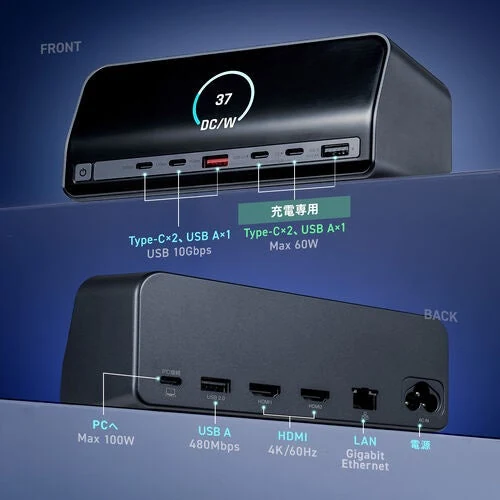
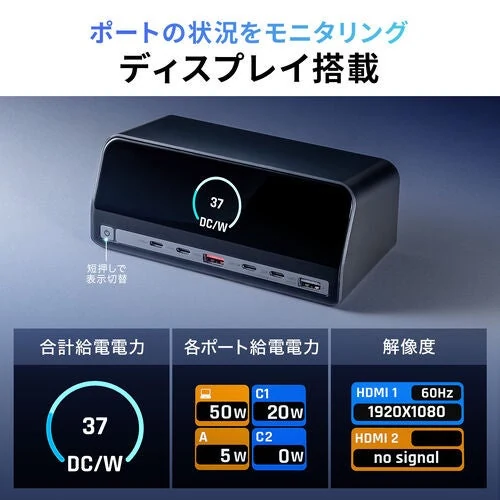
Sanwa Supply released the 400-VGA032 USB-C dock in Japan on October 27, priced at ¥18,000 before tax. Its small LCD shows total and per-port power, plus HDMI output resolution, with a button to change the view.
Finally, a desk accessory willing to tell you what it is doing. Usually the cable pile offers nothing but confidence and a blinking light. A status display is a modest idea, but it could make the familiar “is this actually charging?” conversation much less theatrical.
The display is useful when it answers a real question
Sanwa advertises up to 160W aggregate power, up to 100W to the host computer, two HDMI outputs rated up to 4K/60Hz, and a built-in power supply. The dock plugs into the wall without a separate AC adapter brick.
The interesting part is seeing the connection state rather than inferring it from a battery icon. When comparing a dock, decide which numbers you would actually check: a laptop receiving less power than expected, an accessory in the wrong port, or a display running at an unintended resolution.
Two sockets still need a host-computer check
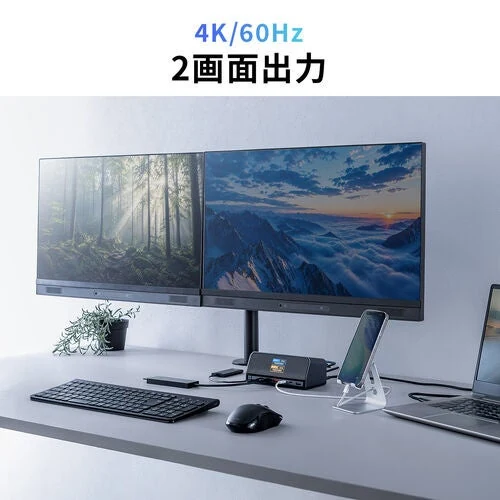
Before ordering, confirm the manufacturer’s video-output requirements for your exact laptop and operating system. Two HDMI connectors are a physical feature; the desktop layout and available modes must still match the host. Ask specifically whether your intended two-screen arrangement is supported, rather than shopping by connector count alone.
It also helps to draw the desk before buying the box. Put permanent cables on one side of the sketch, then mark the things you unplug daily. The best location for a dock is not always the prettiest gap in the product photo. A tiny plan can save an impressive amount of crawling under furniture.
Keep the dock and the switch in separate shopping baskets
Our Sanwa SW-USS24 coverage describes sharing USB peripherals between two computers, a different job from consolidating one laptop’s connections. Our ASUS Bulwark dock story explores a more gaming-focused desk connection.
Do not replace a working setup simply because this one has a pleasing little display. Replace it when a missing connection, an untidy power arrangement or a recurring diagnostic problem gives the screen a job. That is the difference between useful information and one more number watching you from the desk.
The takeaway: verify the host first, compare the needed ports, and treat the LCD as a convenience you can explain. A dock earns its space by making the setup simpler after everything is plugged in.


You May Also Like

ASUS brings light-blue OLED Vivobooks to Japan

Apple’s M6 iMac starts at CAD $2,099, with configuration catches