Edge tackles the fake virus alerts that keep coming back
You close the strange webpage. A little later, a dramatic “virus” warning appears anyway. Apparently the unwanted guest has found the doorbell and decided to make that everyone’s problem.
Microsoft’s November 2 Edge update explains changes aimed at this notification loop. With last month’s Edge 156 rollout, the browser began automatically disabling a site’s notifications when Microsoft Defender SmartScreen or Scareware blocker detects a scam delivered through them.
Close the route back to the scam
The important change is the connection between the detected scam and the site that sent the notification. Closing a page and withdrawing its permission to contact you are different actions. This control addresses the latter.
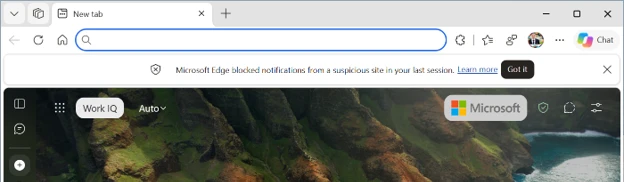
Microsoft says an information bar appears when Edge next starts, and incorrectly blocked sites can be reviewed and unblocked in Settings. That review path matters: an automatic decision should have a way back when the browser gets it wrong.
There is a useful everyday lesson here, too. An alarming-looking message is a prompt to pause, not proof that the claim inside it is true. Look at who sent it before accepting its diagnosis. A tiny rectangle shouting at you has not earned a lab coat.
A report option at the permission prompt
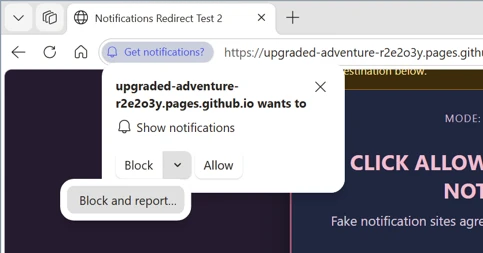
Edge also adds Block and report in the menu beside Block on a notification-permission request. Microsoft says reports can include the requesting URL and a screenshot.
That gives people a way to flag the invitation itself, rather than waiting for the first unwanted alert. If you make a report, check what you are sending and keep unrelated personal information out of the screenshot. A concise explanation of the misleading request is more useful than a photograph of your entire digital life.
For a legitimate website, take a moment to decide whether ongoing notifications would actually help. Permission prompts arrive at precisely the moment you were trying to read something else. You are allowed to finish thinking before answering.
You can still stop unwanted notifications yourself
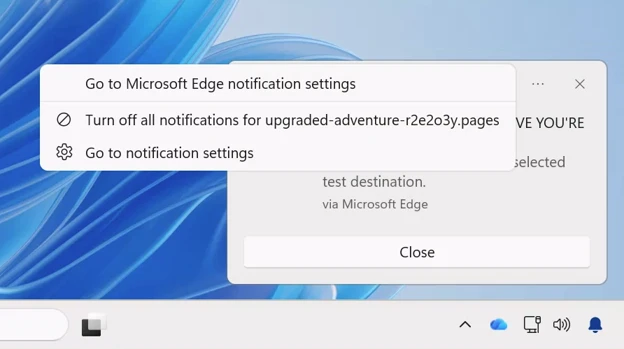
Microsoft’s example shows the notification’s three-dot menu offering a way to turn off future notifications from that site. Use the browser or notification controls rather than following a worrying alert’s instructions.
These are official illustrative screenshots, not a claim that DeviceCritique tested malicious sites. Nor does the announcement establish that every scam will be caught: the automatic action depends on a detection.
For another browser’s current development, our Vivaldi 8.3 release-candidate report looks at a different set of fixes. Our Software & Services coverage follows the broader app picture.
The takeaway: Edge is trying to cut off repeat notification lures as well as the scam pages they lead to. Review permissions when an alert becomes suspicious, and keep the browser current. Your desktop can have a busy day without also hosting a very tiny disaster theatre.


You May Also Like
WellPD opens orders for Parkinson’s monitoring, including Canada

JAPANNEXT’s white 21.5-inch touchscreen has one crucial cable detail